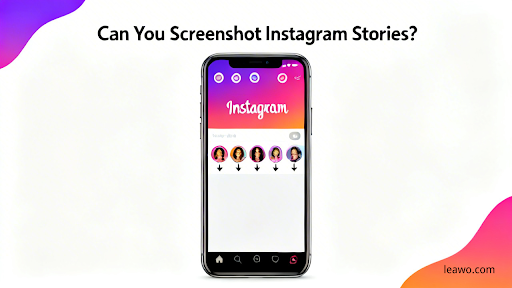
Can You Screenshot Instagram Stories?
Instagram Stories have become essential for sharing daily moments, but questions persist about whether you can capture these ephemeral posts. Whether you want to save memorable content, reference information later, or preserve creative inspiration, understanding how to screenshot Instagram story content while respecting privacy is crucial. This comprehensive guide explains Instagram’s notification policies, provides step-by-step instructions for all devices, and addresses important privacy considerations.
Instagram Stories disappear after 24 hours, making screenshots valuable for preserving content you want to reference later. Unlike some features that notify users of screenshots, Instagram handles Story screenshots differently, allowing discreet saving in most cases. This guide covers everything you need to know about capturing Instagram Stories responsibly across all platforms.
Part 1: Can You Screenshot Instagram Story?
The short answer: Yes, you can screenshot Instagram Stories without the poster receiving notifications. Instagram’s notification rules specifically exclude regular Stories from screenshot alerts. When you capture a Story, the content creator remains unaware of your screenshot.
Important exception: Instagram does notify users when you screenshot disappearing photos or videos sent via Direct Messages. This distinction matters significantly. Regular Stories posted to feeds allow silent screenshots, while private DM content triggers immediate notifications protecting sensitive exchanges.
Why this policy exists: Instagram balances user privacy with content sharing. Public Stories are meant for broader viewing, making screenshot notifications unnecessary. Direct Messages involve private communication where both parties deserve awareness of content preservation. Understanding this distinction helps you navigate Instagram’s screenshot capabilities responsibly.
Part 2: Screenshot Instagram Stories on iPhone
iPhone users can easily capture Instagram Stories using built-in iOS functionality without installing additional apps.
Screenshot shortcut: Press the Side Button (power button) and Volume Up button simultaneously. You’ll see a flash and hear a shutter sound confirming the screenshot. The captured image appears as a thumbnail in the bottom-left corner. Tap the thumbnail to edit or share immediately, or let it automatically save to Photos.
For older iPhones with Home buttons: Press the Home Button and Power Button simultaneously to capture screenshots.
Editing captured Stories: After screenshotting, tap the thumbnail to access markup tools. Crop the screenshot to remove interface elements like usernames or timestamps. Add annotations, text, or highlights as needed. Save the edited version to your Photos library.
Part 3: Screenshot Instagram Stories on Android
Android devices offer multiple methods for capturing Instagram Stories, with specific buttons varying by manufacturer.
Standard Android screenshot: Press the Power Button and Volume Down button simultaneously. Hold briefly until you see the screen flash. The screenshot saves to your Gallery or Photos app automatically.
Quick Settings method: Swipe down from the top of your screen to access Quick Settings. Look for “Screenshot” or “Screen Capture” icon (availability varies by device). Tap the icon to capture the current screen.
Manufacturer-specific shortcuts: Samsung devices support palm swipe gestures for screenshots. Some Android phones offer three-finger swipe gestures. Check your device’s specific screenshot method in Settings if standard shortcuts don’t work.
Accessing captured screenshots: Open your Gallery or Photos app. Navigate to the Screenshots folder. Find your saved Instagram Story screenshot ready for viewing or sharing.
Part 4: Screenshot Instagram Stories on PC
Computer users have several options for capturing Instagram Stories, with dedicated screen recording software offering the most features and reliability.
Leawo Free Screen Recorder provides comprehensive screenshot and recording capabilities specifically optimized for capturing social media content.
Key features:
- Captures full screen, selected regions, or specific windows
- Records both screenshots and video with audio
- Supports high-quality output without watermarks
- Includes screenshot annotation tools
- Completely free with no time limitations
- Lightweight and easy to use
Steps to screenshot Instagram Stories on PC:
- Download and install Leawo Free Screen Recorder on your computer
- Launch the application
- Open Instagram in your web browser and navigate to the Story
- In Leawo, select “Screenshot” mode
- Click “Custom Region” to define the area containing the Story
- Play the Story and click “Screenshot” button when you want to capture
- The screenshot saves automatically to your designated folder
- Access captured images in the output folder for viewing or editing
For users preferring web-based solutions, video recorder online tools offer instant recording without installation, though desktop software provides superior quality and features.
Part 5: Privacy Tips When Screenshotting Stories
1. Respect Creators’ Content
Content creators invest time and creativity into their Instagram Stories. Always consider their intentions before screenshotting. If Stories contain personal information, sensitive topics, or creative work, think carefully about whether preserving this content respects the creator’s boundaries. When in doubt, ask permission before capturing and sharing someone’s Story content.
2. Avoid Sharing Without Permission
Screenshotting for personal reference differs vastly from redistributing content. Never repost someone’s Story screenshot without explicit permission. Don’t share screenshots in group chats, other social media platforms, or public forums without consent. Commercial use of screenshotted content without licensing violates copyright laws. Always credit original creators when sharing permitted screenshots.
3. Be Aware of Digital Privacy
Screenshots create permanent records of ephemeral content. Consider the implications of preserving content meant to disappear after 24 hours. Some people share candidly in Stories precisely because content vanishes quickly. Respect this trust by using screenshots responsibly. Remember that just because Instagram doesn’t notify users doesn’t make all screenshotting ethical. Use discretion and respect content creators’ reasonable expectations of privacy.
FAQs
1. Does Instagram notify when you screenshot a Story?
No, Instagram does not notify users when you screenshot their regular Stories. You can capture Stories freely without the poster receiving any alerts or notifications. However, Instagram does notify users when you screenshot disappearing photos or videos sent via Direct Messages. This distinction protects private conversations while allowing public Story content to be saved discreetly.
2. Can someone see if you screen record their Story?
No, Instagram does not notify users when you screen record their Stories. Like screenshots, screen recordings of regular Instagram Stories happen without triggering any alerts to the content creator. However, the same exception applies to Direct Messages. Recording disappearing DM content will notify the sender. Always respect privacy when recording content, even if technically possible without detection.
3. Is screenshotting Instagram Stories allowed?
Yes, screenshotting Instagram Stories is allowed by the platform and doesn’t violate Instagram’s terms of service. Instagram designed Stories knowing users can capture them. However, what you do with screenshots matters legally and ethically. Copyright laws protect content creators’ work, so using screenshots for personal reference is acceptable, but redistributing, reposting, or commercial use without permission violates intellectual property rights. Always respect creators’ rights even when technical capabilities allow screenshotting.
Conclusion
Understanding whether you can screenshot an Instagram story reveals that Instagram permits capturing Stories without notifications for regular feed content. iPhone users utilize simple button combinations, Android users employ various device-specific shortcuts, and PC users benefit from dedicated software like Leawo Free Screen Recorder for enhanced capabilities.
While Instagram story screenshot functionality exists without notifications, ethical considerations remain paramount. Respect content creators by using screenshots responsibly, avoiding unauthorized sharing, and recognizing that ephemeral content deserves privacy consideration. The absence of screenshot notifications doesn’t eliminate your responsibility to use captured content ethically and legally.
Choose screenshotting methods matching your device and needs. Mobile users benefit from built-in shortcuts requiring no additional apps. PC users gain advanced features through dedicated screen recording software. Regardless of method, always prioritize respect for content creators and their digital privacy while preserving Instagram Stories for legitimate personal reference purposes.
Stay in touch to get more updates & news on Ancientartz!